Learn to Swim FAQ's
About Us
When do bookings open each term?
Existing swimmers will be sent an early access link to book for the following term. This link is sent after our grading week, generally week 9 or 10 of the term.
Bookings for new swimmers will open shortly after that. You will be able to book via our website or using the customer portal.
To get a reminder email when bookings are open for the next term, fill out this form.
When do you run lessons?
We run lessons in line with the Ministry of Education outlined school term for our term-based programme.
We do not run lessons on Public Holidays. You are not charged for these days.
We also run a holiday block each school holidays. These run the week before Term 1, and the week after Term 1, 2, and 3.
During the warmer months we run a holiday block, and term-based programme at Darfield pool. This runs part way through Term 4 and ends part way through Term 1.
Do you run private lessons?
Yes, we offer private lessons. To register your interest, please fill out this form.
Who do I contact if I have questions?
I want to book! How can I do that?
We are excited that you and your family will be swimming with us.
If bookings are open, follow "How do I book a Learn to Swim class?" below.
If bookings are closed for the current term, get a reminder email when bookings are open for the next term, fill out this form.
Alternatively, contact our team for help!
Getting started
How do I set up my parent portal profile?
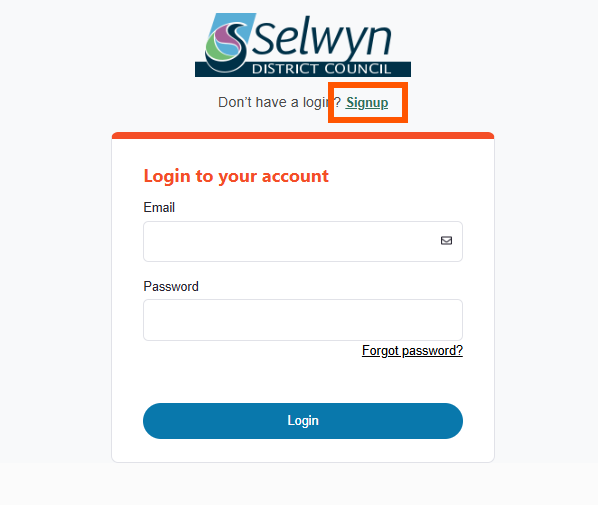 | Go to parent portal Click "Signup" if you have not already got a profile. (Log in, if you do). |
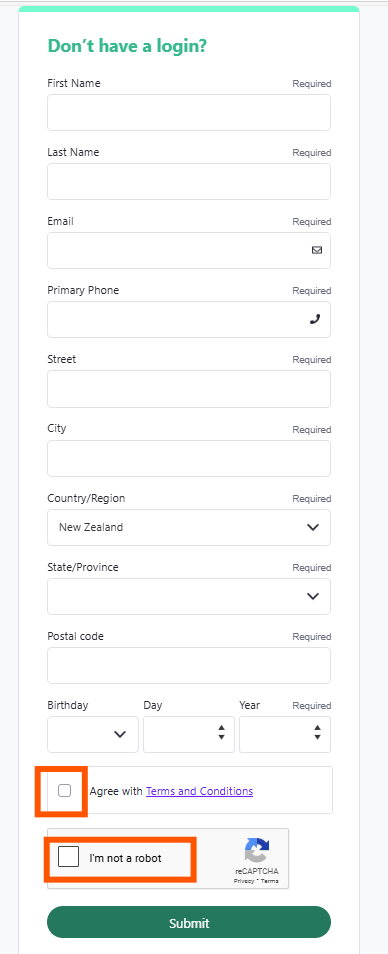 | Enter YOUR details, click "Save", and complete the captcha request. You will receive an email with a temporary password. Log in with the temporary password- you’ll then be prompted to create a personalised password. Once you’ve reset your unique personalised password, log back in. |
Adding family members & assigning a level
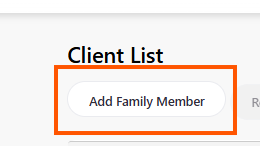
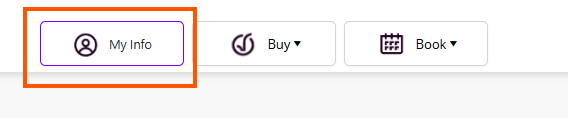 | Click "My Info" and then "Add Family Member" |
 | |
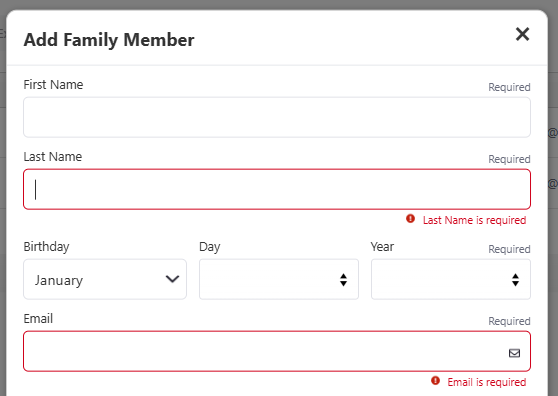 | Fill in their details |
 | Add a "Self-Assessed level". This will need to match their age and ability. Check our website to know the right level. Click "Submit" |
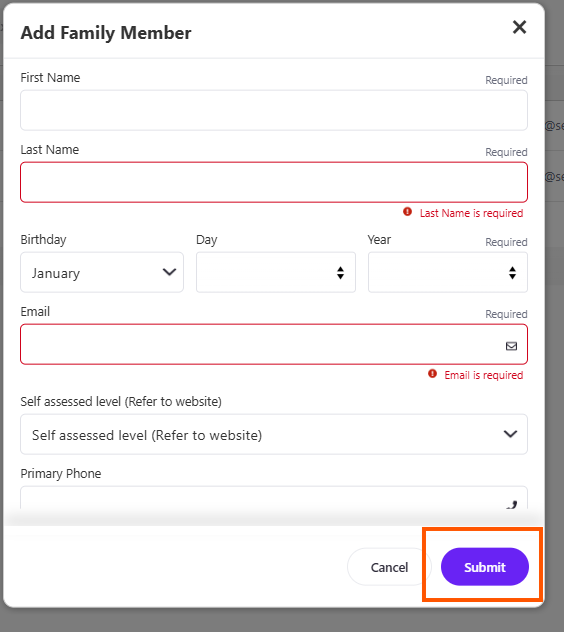 | Repeat for your family members who will be involved in swim lessons with us. |
Editing family member details
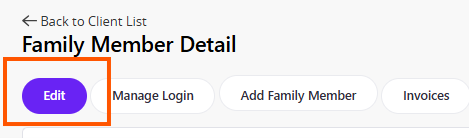
| Head to "My Info" Click swimmer name Click "Edit" Enter data needed Click "Save" |
How do I know what level my swimmer is?
| | Click “My Info". |
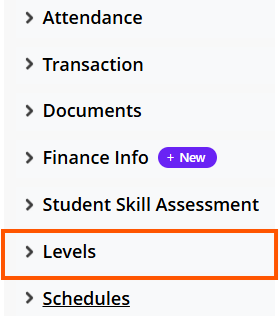 | Click the name of the family member. Scroll down and open "Levels" Please note- only the primary account holder in a family will be able to view other family member's levels and grading. |
| Not sure on what level your swimmer should be? If you are new to Selwyn Swim School, and you're not sure of the right level, contact our friendly team for a level assessment swim- we are here to help! |
How can I view my grading?
| Click “My Info". |
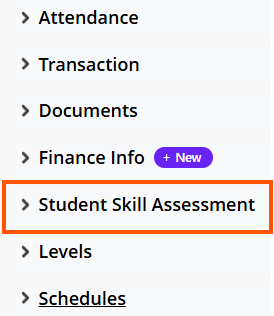 | Click the name of the family member Scroll down and open "Student Skill Assessment" If using a mobile device, you will need to drag the screen from right to left to view all the data. |
What does the grading criteria mean?
1. Introduced
- The swimmer has been given the opportunity to try this skill.
2. Attempting
- Confidence is developing and swimmer is making initial efforts to perform the skill.
3. Developing
- The swimmer shows improvement and is beginning to develop correct techniques.
4. Refining
- The swimmer is becoming more proficient, consistently swimming well. Some refinements are still required for correct technique.
5. Achieved
- Swimmer consistently performs the skill with great technique, without prompting. Usually observed over 3 weeks.
Bookings
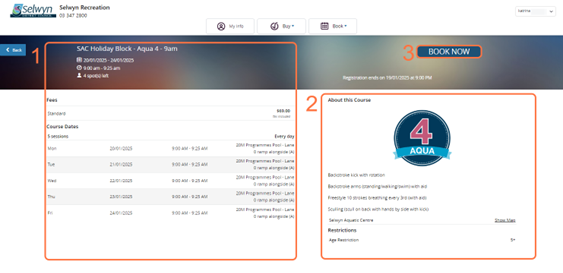
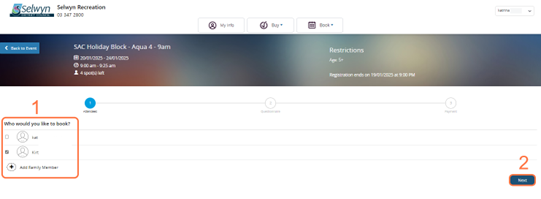
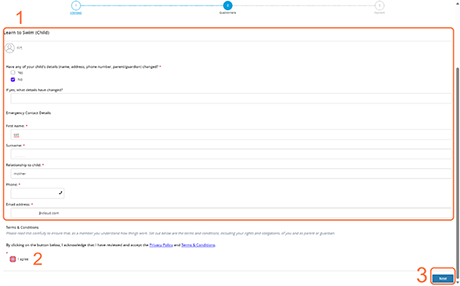
How do I book a Learn to Swim class?
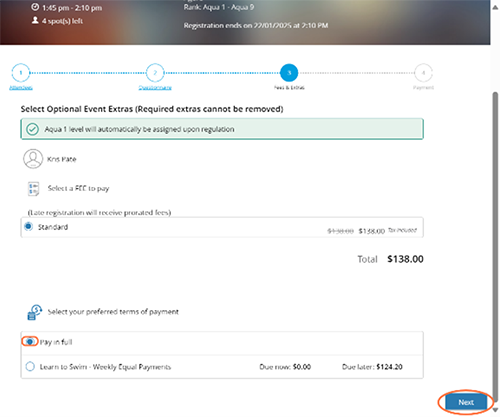
Note: To book lessons for multiple people, you can click on Continue Shopping and the previous steps before clicking Place My Order. If you wish to pay using cash or EFTPOS card, kindly see the team at the Selwyn Aquatic Centre.
| |
 | Classes will be held in your cart for 5minutes- no need to rush! |
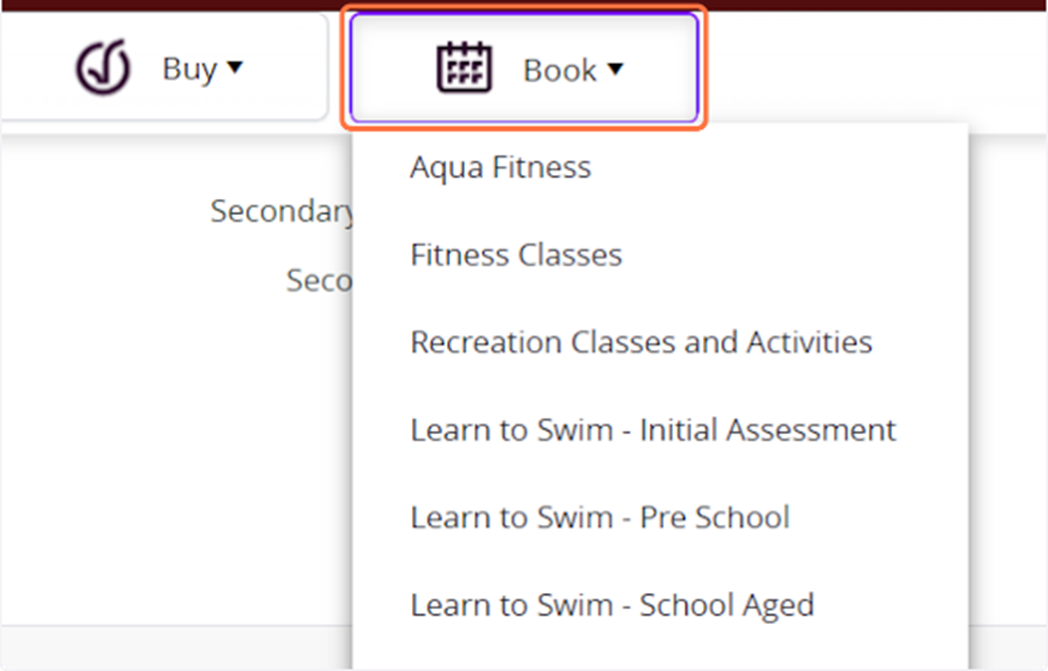
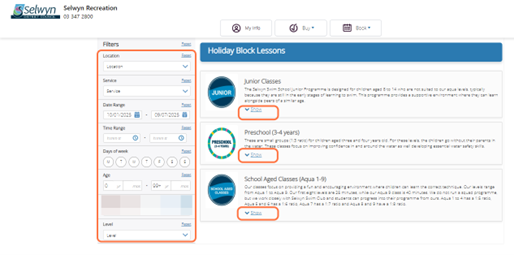
How do I set up my parent portal profile? (profile, family members)
| | Go to parent portal Click "Signup" if you have not already got a profile. (Log in, if you do). |
| | Enter YOUR details, click "Save", and complete the captcha request. You will receive an email with a temporary password. Log in with the temporary password- you’ll then be prompted to create a personalised password. Once you’ve reset your unique personalised password, log back in. |
How to withdraw
 |
|
 | |
 | |
 | |
 |
Can I change my class after booking?
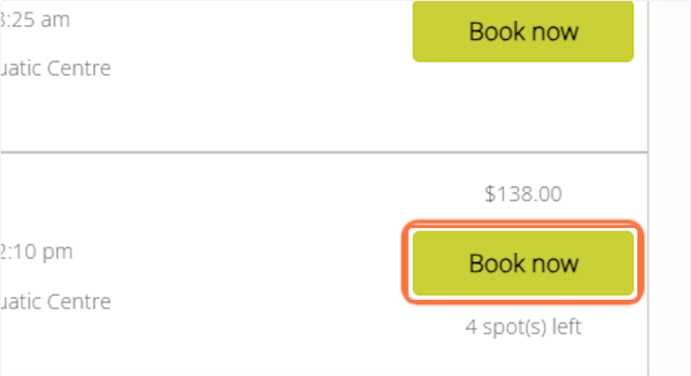
- Check the booking page to make sure there’s a spot available in the time/day you want to swap to. The number of available spots is shown below the Book now button.
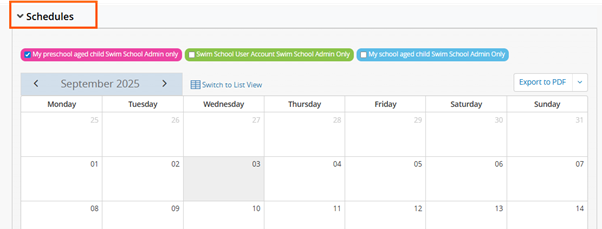
- Log into Selwyn Recreation portal and view your child’s schedule.
- Click ‘Switch to list view’.
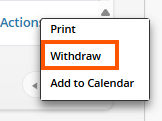
- Click on Actions, then select Withdraw. Please note that when you withdraw from a class the booking will be deleted, even if you confirmed a priority reservation to book the spot initially.
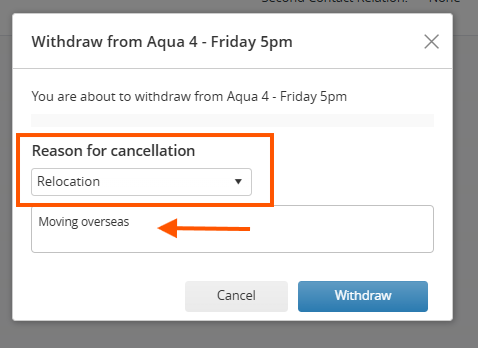
- If you’ve already paid in full, select Account Credit as the Refund Method. If you set up a payment plan, it will be cancelled automatically.
- Select 'Timetable not suitable' as the reason for cancellation.
- Click Withdraw.
- Book the new lesson. If you received credit when cancelling a previous booking you can use your credit to pay for the new booking.
Can I let you know if there is a better day and time than my current booking?
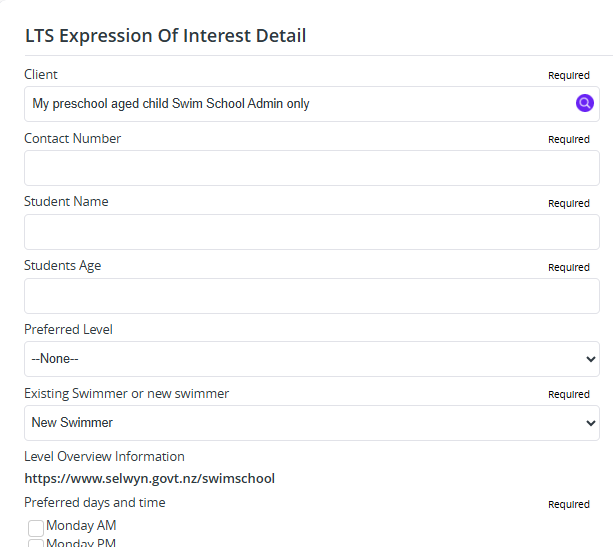 | Yes, you can. We have an expression on interest form which we monitor regularly.
|
How can I see my lesson day and time?
| Click “My Info’. Click the name of the family member |
| | Scroll down and open ‘Schedule’. |
Payments
Do you offer a multi-swimmer discount?
Yes, we offer a multi-swimmer discount: 30% off for the third swimmer, 10% off for all subsequent swimmers. Please note that this discount does not include private, homeschools, waves and school-group (through your child's school) lessons.
To get the multi-swimmer discount, please note:
- Swimmers must all be booked in the same season (i.e. Term 1 2025)
- Swimmers must be all in the same family account in our Selwyn Recreation Portal. If your swimmer’s account isn’t linked, please contact the swim school team. If your swimmer doesn’t yet have an account, please refer to our FAQs on ‘How do I set up an account for my family?’
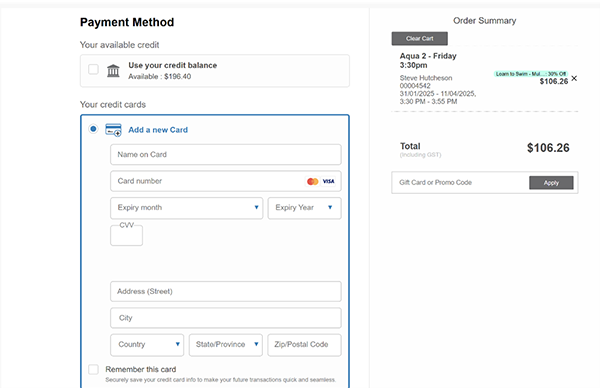
- Bookings don’t have to be done in a single transaction to get the discount. For example, confirm and pay for First Child $151.80 in transaction one, repeat for Second Child $151.80 in transaction two, and then Third Child’s price upon payment checkout will show $106.26 (30% discounted) in the third transaction, see sample below. Note that the discount won't show when adding to the cart - the discount is applied at checkout.
How do I pay for my booking?
Option 1:
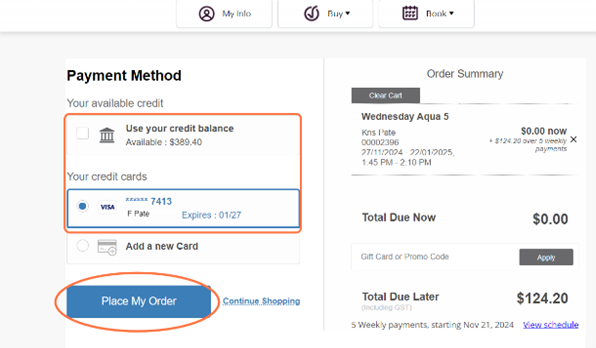
- You will be prompted for full payment when making a booking. Enter your card details to make the purchase and confirm your booking.
Option 2:
- If you prefer to pay via EFTPOS card or cash, please visit us at Selwyn Aquatic Centre.
- Staff will process EFTPOS or cash and load credit to your account. Ask them to confirm the amount appears in your Account Balance.
- Funds will need to be added to your Xplor account, prior to confirming a booking, should you wish not to make an online card payment. Back on the portal, add the desired class to cart and complete checkout using your account credit (it will show as available payment method).
Adding card details
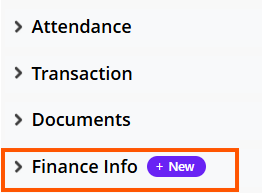 | Head to "Finance Info"– click ‘+"New". Enter your card details. |
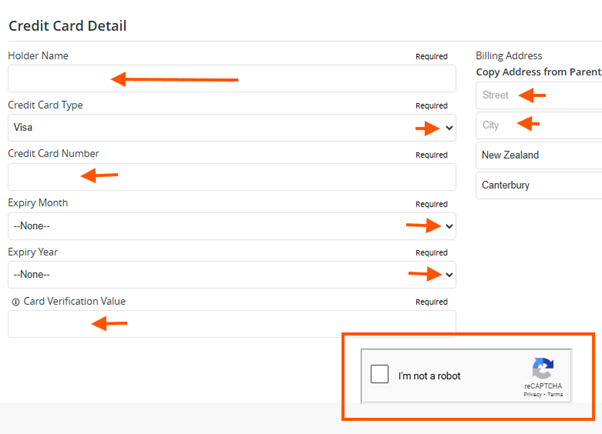 | Complete the Captcha Click "Save" |
Can I make weekly payments?
While our system doesn’t support weekly direct debits, you can still choose to pay weekly in a way that suits you! Simply head to reception to make a payment, and we’ll add it as credit on your account. This credit can then be used towards your next booking.
The best part? You’re free to make payments on your own schedule, in amounts that work best for you.
Tech help
What if I see an error message "Class does not have enough spots left!" error?
| Unfortunately, the class you have selected is now full. Please select another class. |
What if I can’t book due to a ‘missing rank’ error?
New Customers: This error happens when lessons require people to have a certain level on their profile to sign up. You can add a level via the "My Info" screen. 1. Navigate to the My Info screen. If you have multiple people on a family account, please click on the person that you wish to assign a level. 2. Click on "Edit" 3. Select the appropriate ‘Self-assessed level’ that you think suits the person based on their current skills (i.e. Aqua 9 School Aged) and click "Save". Note: You can read more about the levels on our website. 4. Click on "Book" and choose the Learn to Swim Lesson category you wish to enroll in. Existing Customers: Please ensure you are trying to book into a level that matches your swimmer’s grading level. Existing customers: You will have received an email confirming your child’s level or can check it as described in How do I view my child’s grading information? | |
| If the level shown on the swimmer’s profile, and the class level you are trying to book do not match- you will receive this error code. If you believe the swimmers level is incorrect, please contact Selwyn Swim School. |
What if I encounter ‘invalid username’ error?
You can check to see if an account with your email exists: visit https://selwyndistrictcouncil.perfectmind.com/ page and click Forgot Password? then enter your email. You’ll receive a password reset email if an account already exists.
Otherwise, kindly email a screenshot to swimschool@selwyn.govt.nz so we can further investigate. Alternatively, you can visit us at Selwyn Aquatic Centre.